
We’re sorry you’re having trouble logging in—don’t worry! There are a few simple steps you can follow to get back into your account.
📚 Table of Content
- First-Time Log-In
- Returning Guest - Account Created Before December 2025
- Returning Guest - Account Created After December 2025
- Common Login Issues & Error Messages
If you need to update the email address linked to your account, please contact our team. We kindly ask that you do not create a new account, as this could cause issues in accessing your order history.
🆕 First-Time Log-In
If this is your first time creating a City Winery account, you’ll need to register first:
1. Go to citywinery.com
2. Click on the 👤 icon on the top right of the page.
3. Click on New user? Create an account
4. Enter your contact information – use an email you check regularly, as we will send any time-sensitive event updates here. Please, make sure to use lowercase letters only and mind the typo.
5. Create a password
- Password must be at least 8 characters
- Use a number
- Use a lowercase letter
- Use an uppercase letter
- Use a symbol
6. Click Sign up
7. Confirm your account
-
A new window will appear prompting you to confirm your account.
-
Check your inbox, you should receive an email with a one-time-use code. ⚠️ Keep the Sign-In page open!
-
Enter this code on the login page to complete the confirmation.
- Click Confirm account
👉 If you’re unable to confirm your account, no worries. Our system automatically confirms accounts every hour. If you still can’t access your account after 24 hours, please contact our team and we’ll be happy to help.
🚫 Didn’t receive your code?
-
Please wait a few minutes—sometimes it can take a little while to arrive.
-
After 15 minutes, check both your inbox and your spam/junk folder.
-
Make sure the email address you entered is correct.
- Try resending the code by clicking the Resend Code button on the page.
-
If you still haven’t received the code, contact our support team and we’ll investigate further.
🔑 Returning Guest - Account Created Before December 2025
If you've created your City Winery account before December 2025, try these steps:
1. Go to citywinery.com
2. Click on the 👤 icon on the top right of the page.
3. Enter the email address linked to your account. Please, make sure to use lowercase letters only and mind the typo.
4. Click Next
5. You should receive a verification code in your inbox. ⚠️ Keep the Sign-In page open!
6. Enter the code in the Verification Code field, and click Continue.
🚫 Didn’t receive your code?
-
Please wait a few minutes—sometimes it can take a little while to arrive.
-
After 15 minutes, check both your inbox and your spam/junk folder.
-
Make sure the email address you entered is correct.
👉 If you still haven’t received the code:
- Click Try Another Way.
- Select the option Password and click Continue.
- Click on Forgot your password?
- Enter the email linked to your account and click Reset Password.
-
You’ll receive a code in your inbox to reset your password.
-
Enter this code on the login page and follow the on-screen instructions to complete the process and create a new password.
⚠️Since your account was created before 2025, you'll need to create a new password. Your old password won’t work on our new website.
🔑 Returning Guest - Account Created After December 2025
If you've created your City Winery account after December 2025, try these steps:
1. Go to citywinery.com
2. Click on the 👤 icon on the top right of the page.
3. Enter the email address linked to your account. Please, make sure to use lowercase letters only and mind the typo.
4. Click Next
5. You should receive a verification code in your inbox. ⚠️ Keep the Sign-In page open!
6. Enter the code on the login page and click Continue.
🚫 Didn’t receive your code?
-
Please wait a few minutes—sometimes it can take a little while to arrive.
-
After 15 minutes, check both your inbox and your spam/junk folder.
-
Make sure the email address you entered is correct.
If you still haven’t received the code, click Try Another Way.
👉 You’ll then have the following options:
-
Receive a one-time password via email, or
-
Log in with the password you created when you first registered.
If you don’t remember your password:
-
Click Forgot Password, enter the email linked to your account, and click Reset Password.
-
You’ll receive a code in your inbox to reset your password.
-
Enter this code on the login page and follow the on-screen instructions to complete the process.
🔏 Common Login Issues & Error Messages
If you are trying to log in and, after entering your email address, you are asked to enter a password instead of receiving a verification code, you may see the following error message:
Invalid input: UserMigration failed with error Incorrect username or password. Please reset your password to continue.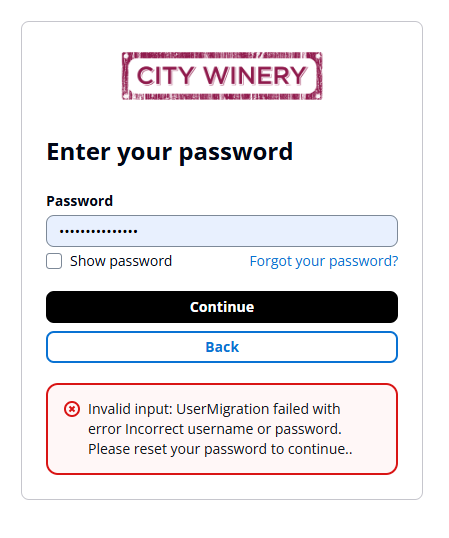
What does this mean?
In most cases, this means that the email address entered is either:
- Misspelled (contains a typo), or
- Not linked to a City Winery account.
Because our system cannot find an account associated with that email address, it cannot send a verification code and instead redirects you to the password sign-in flow. Since there is no account associated with that email address, any password entered will also be rejected.
How can I fix this?
- Double-check that your email address is entered correctly.
- Make sure you are using the email address associated with your City Winery account.
- If you have never created a City Winery account before, you will need to create one by following the steps in the First-Time Log-In section above.
What if I try to reset my password?
If you click Forgot Password and receive the following message:
Could not reset password for the account. Please contact support or try again.
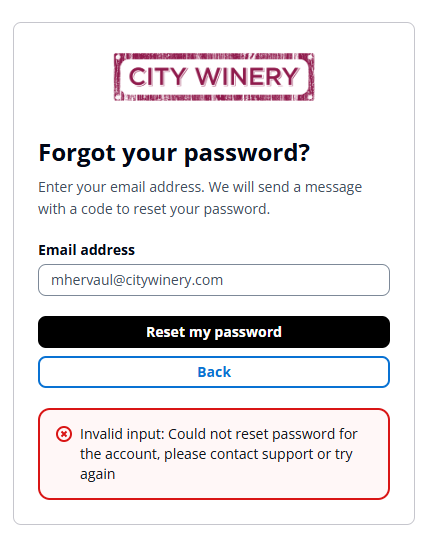
This typically means that the email address entered is either incorrect or is not associated with an existing City Winery account.
In this case, please verify the email address and try again. If you do not have an existing account, you will need to create a new account by following the First-Time Log-In instructions above.
🔄 I can't log in, but I also can't create a new account
If you receive an error message when trying to log in, but also receive an error when attempting to create a new account with the same email address, it is possible that you previously created an account but did not complete the account verification step.
Don't worry! Our system automatically confirms unverified accounts every couple of hours.
If you recently created your account, we recommend waiting a little while and then trying to log in again using the email address you registered with.
If you still cannot access your account after 24 hours, please contact our team and we'll be happy to help.